

Set up HubSpot <> Voxie Integration
Seamlessly sync contacts from HubSpot Workflows into Voxie for personalized SMS and MMS campaigns.
Table of Contents
Overview
The Voxie App for HubSpot Workflows allows you to seamlessly sync contacts from a HubSpot Workflow into Voxie as an External List. This External List can be used immediately in Voxie for personalized SMS or MMS campaigns such as Quick Blast or Evergreen Campaigns.
Installation Guide
Get a Demo/Voxie.com Account
In order to get started with the integration process you need to have an existing Voxie and HubSpot accounts. If you are new to Voxie, please visit our Request a Demo page to set up your brand-new Voxie account and see what automated conversational text messaging can do for your brand!
Note: Access to the Voxie App in HubSpot requires a signed agreement before activation.
Install The App
Contact Voxie team to activate HubSpot integration for your Voxie account.
Log in into Voxie.
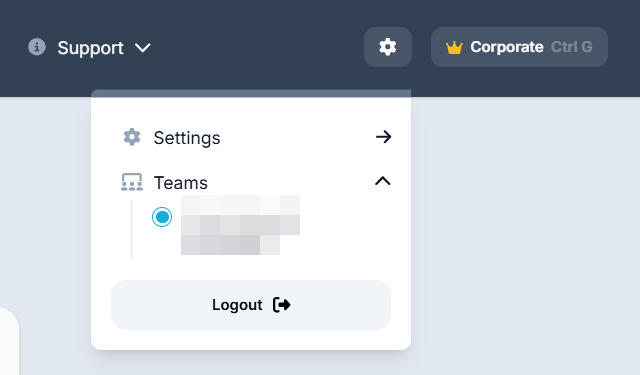
Navigate to the Settings page (cog icon on the top-right).
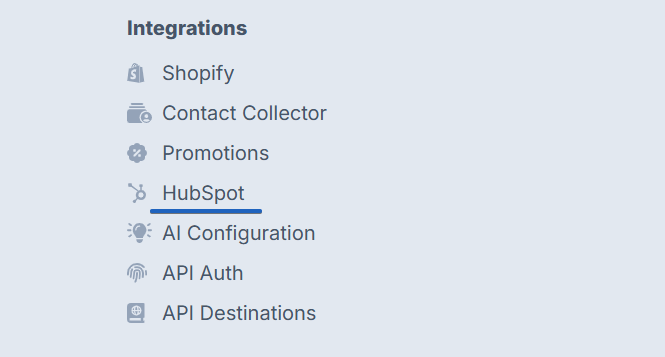
Go to the HubSpot sub-page under the Integrations section.
Note: In Voxie, admin level access is required for operations with external Integrations.
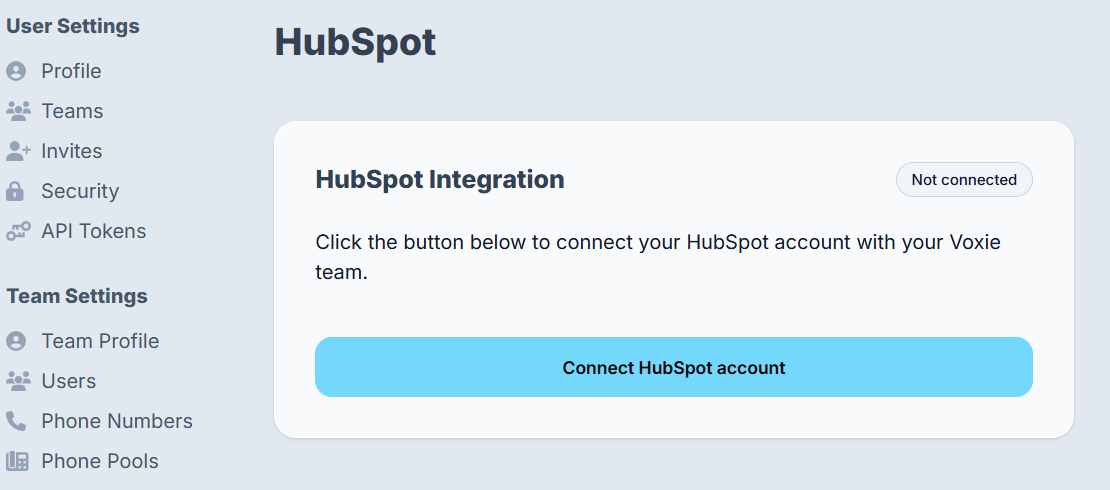
Press Connect HubSpot account to initiate the SSO connection process.
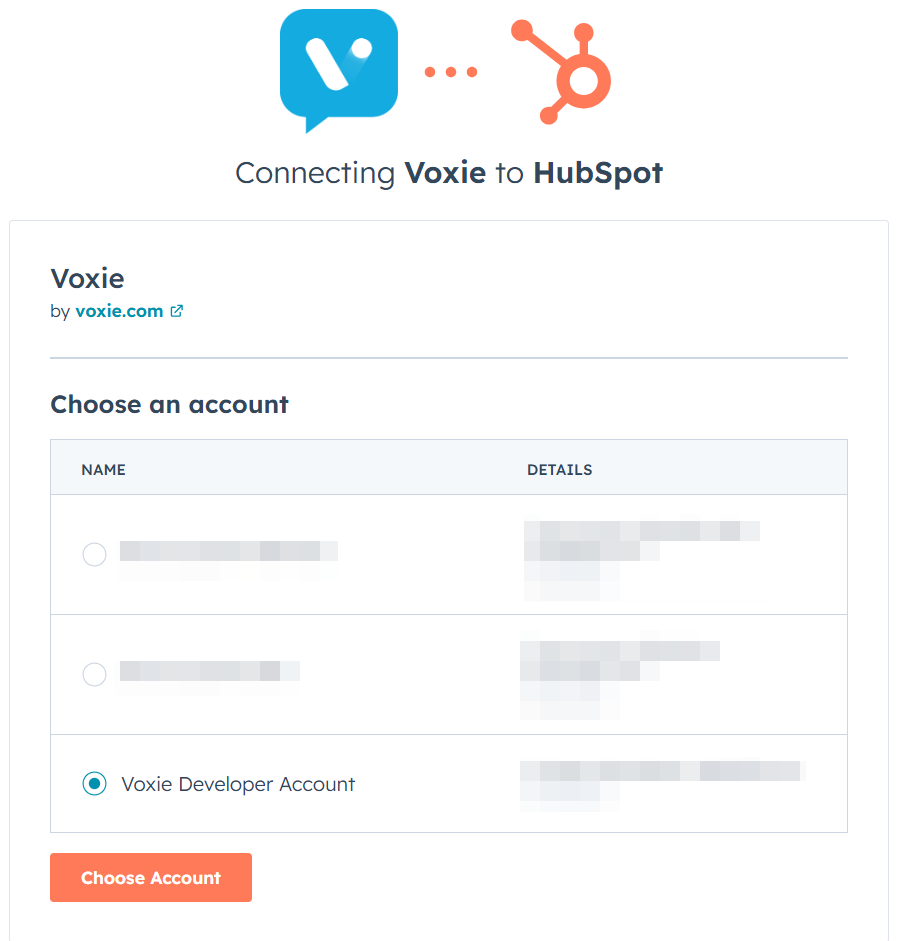
Now you need to grant permissions for Voxie to sync with HubSpot. Click the Choose Account button in the lower left.
How It Works
When added to a HubSpot Workflow, the Voxie App will:
- 1
Take contacts that meet Voxie requirements (have all the required fields from the Contact Fields & Metadata Mapping table present) from HubSpot.
- 2
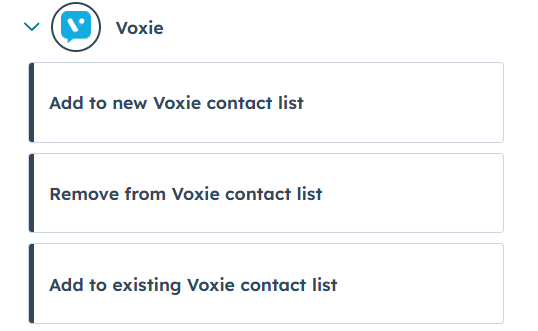
Push them to Voxie as an External List (similar to Segments in Voxie). Additionally, a separate 'Remove from Voxie contact list' action will be available for better Workflow management options.
- 3
Map selected HubSpot fields to Voxie Contact Attributes and Custom Attributes.
- 4
Allow these contacts to be used in SMS or MMS Campaigns built in Voxie, with full personalization capabilities.
- 5
Optionally enable two-way data sync back into HubSpot via Voxie Webhooks.
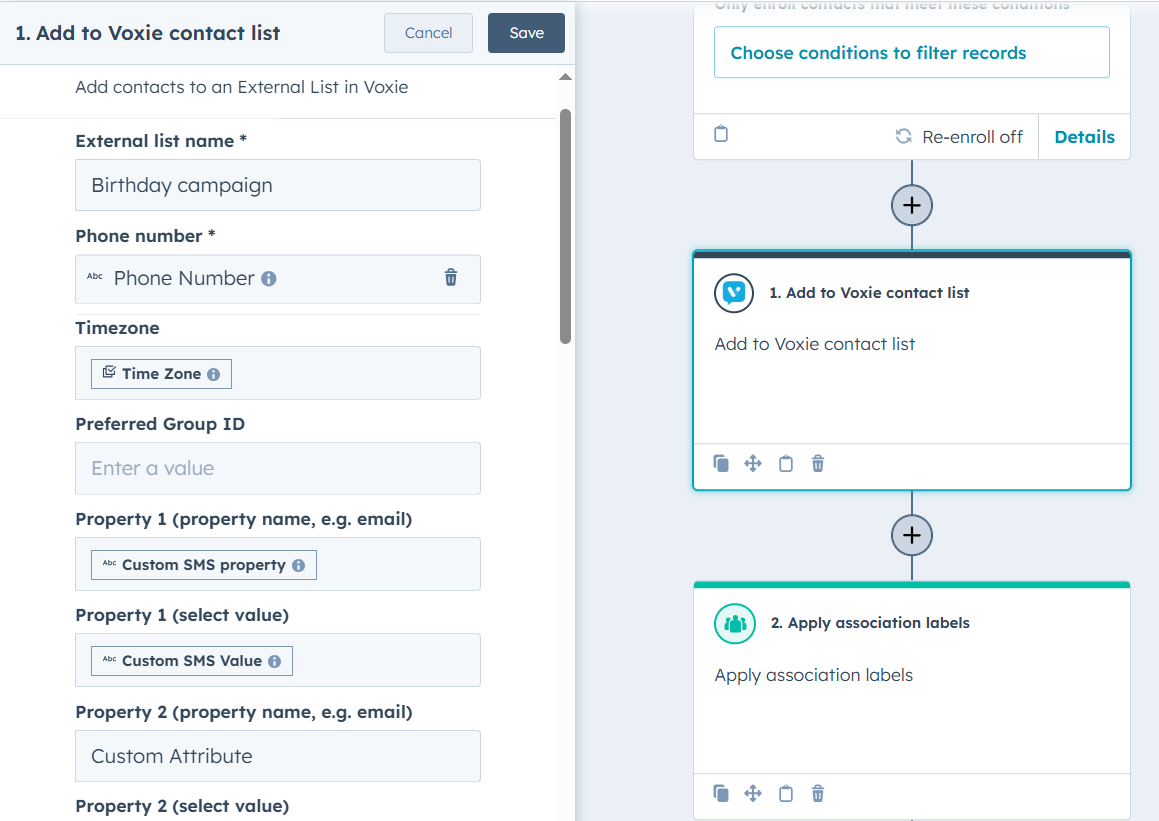
You can have more than one Voxie node per HubSpot Workflow, and each can create a different External list in Voxie with 'Add to new Voxie contact list' action. You can also utilize the 'Add to existing Voxie contact list' action if you need to have different Workflow actions leading to the same External List.
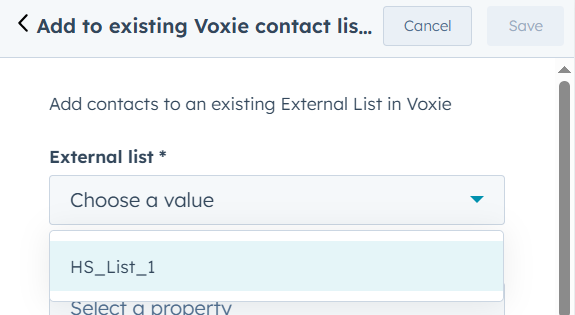
We are synchronizing the External List information between the platforms, so you do not need to input the names of the External Lists you've already created when using 'Remove from Voxie contact list' or 'Add to existing Voxie contact list' actions, you can just select one from the menu!
Contact Fields & Metadata Mapping
When configuring the Voxie App within a Workflow Action Node, you'll be prompted to define the following:
| Voxie Field | Required | HubSpot Mapping Options | Description |
|---|---|---|---|
| External List Name | Required | User-defined field to help organize your HubSpot Workflow output in Voxie | Name of the External List in Voxie |
| Phone Number | Required | User selects/enters a HubSpot Phone Number Contact Property | Primary contact identifier in Voxie |
| Email, HS_ID | Required | Automatically pulled from HubSpot | Helps for identification and sync |
| First Name, Last Name | Optional | Automatically pulled from HubSpot | Helps for identification and sync |
| Contact TimeZone | Optional | User selects Time Zone contact property from HubSpot | Helps Voxie send messages at local times |
| Preferred Group | Optional | User selects/enters a value manually or from the list of HubSpot Contact Properties | Maps contact to a franchise location (Voxie group) |
| Properties | Optional | User selects/enters up to 10 HubSpot Contact Properties | Mapped as custom_attributes in Voxie, with a defined Name and Value |
| Tags | Optional | User selects/enters up to two HubSpot Contact Properties | Mapped as tags in Voxie, with a defined Value |
Using Custom Properties in HubSpot with Voxie
Voxie has added support for HubSpot Custom Properties to be used on the Voxie App in Workflows:
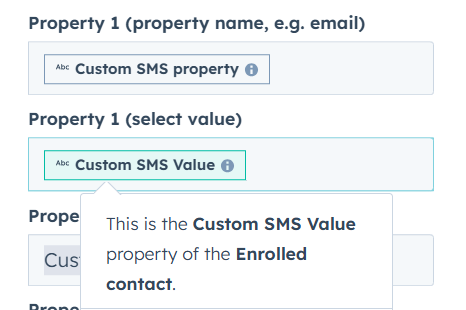
- After creating your own Custom Properties (HubSpot guide on Custom Properties) you will be able to simply find and use them while filling in Voxie action in your Workflow
- Custom Properties support added to all fields in Voxie Action, allowing you to easily fill in frequently re-used values like External List Name or Preferred Group ID
- HubSpot Custom Properties can be translated into Voxie Custom Attributes:
- Create HS Custom Property (Single-line text) to be used as Voxie Custom Attribute name
- Create another HS Custom Property (Single-line text) to be used as Voxie Custom Attribute value
- Populate the created Properties on the HS contact manually or via automation
- Now you can simply add those Properties to Voxie App in the Workflow
Campaign Use in Voxie
Once contacts are pushed to Voxie:
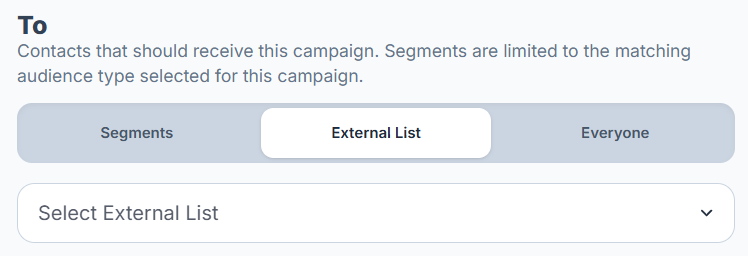
- They are created/updated with mapped metadata and added to the designated External List
- Can be used in Quick Blast or Evergreen Campaigns
- Campaign Message Builder supports Liquid Templating to dynamically insert attribute values
External List functionality will be enabled for you alongside the HubSpot integration
Example Message with Liquid Variables
Hi {{contact=>first_name}}, this is {{group=>location_name}} - I saw you were interested in our {{contact=>custom_attributes=>class_type}} program!

Do you have any questions before registering?

If you're ready to get started, tap the link here & complete your registration! {{group=>registration_link}}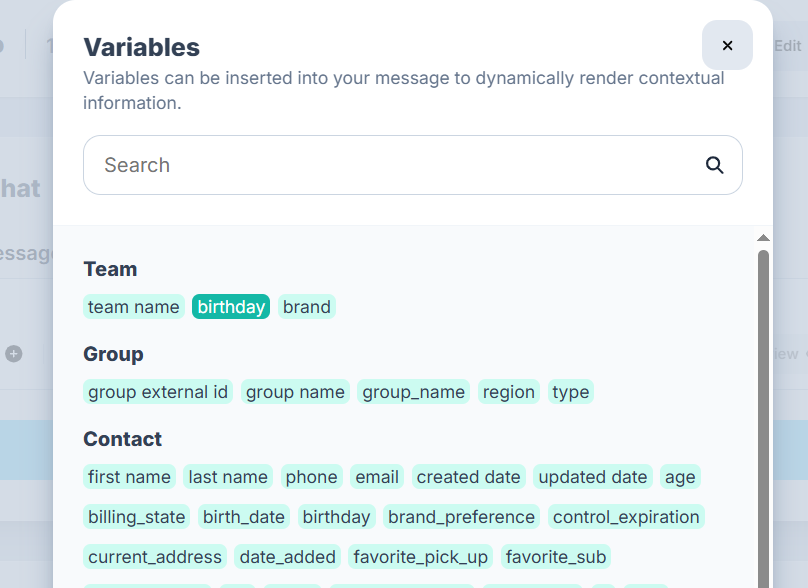
Analytics & Reporting in Voxie
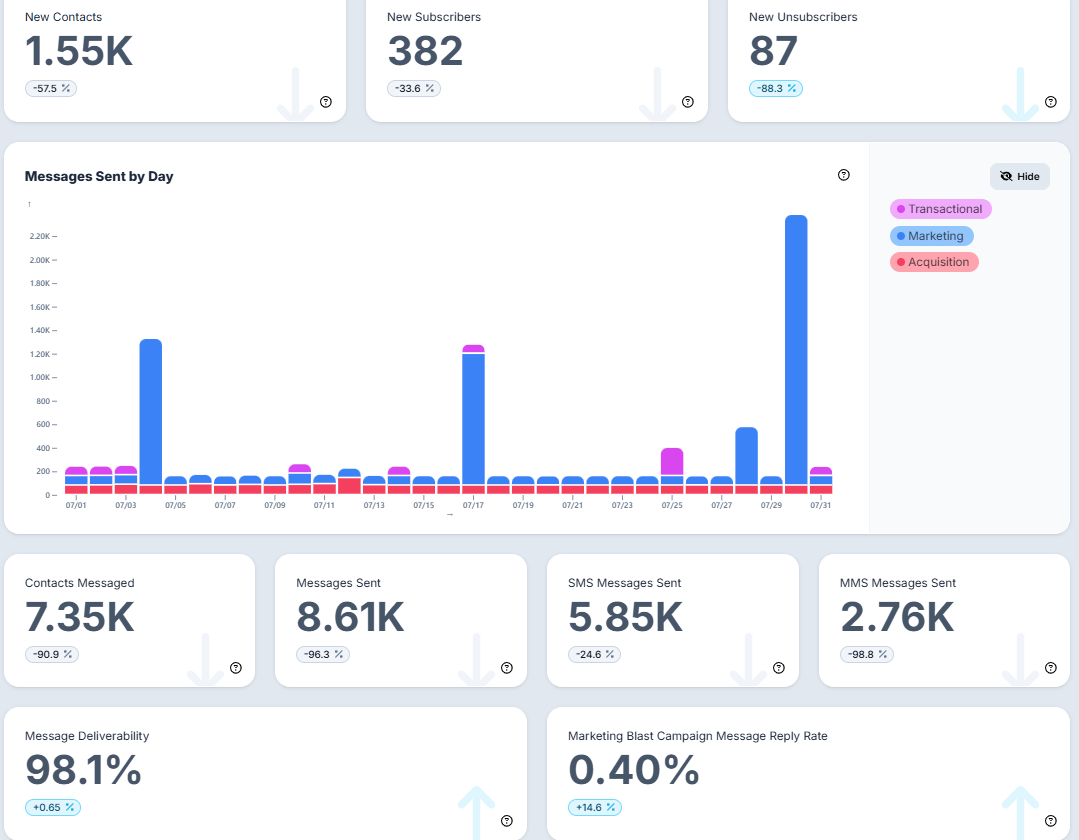
Once a campaign is sent using a HubSpot-powered External List, you can monitor results directly within Voxie Analytics:
- Messaged Contacts
- SMS/MMS Segments Sent
- Message Deliverability
- Unsubscribe Rate
- Unique Click-Through Rate
- Click-Through Rate (CTR)
- Reply Rate
- Per-audience source reporting (if multiple are enabled)
Example Use Case
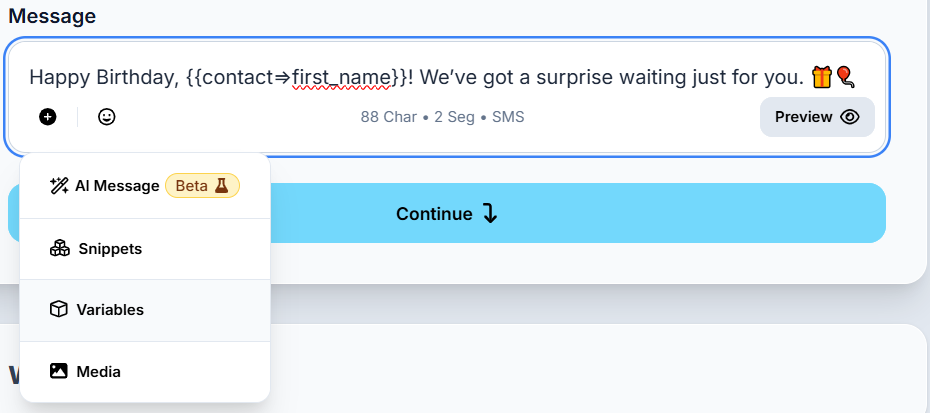
Use Case: Birthday Campaign
- Create a Workflow in HubSpot filtering contacts with upcoming birthday
- Add the Voxie App as an action node
- Map birthday and name to Voxie
- Use an Evergreen Campaign in Voxie to auto-send birthday greetings
Recent Updates
Latest improvements to the HubSpot integration.
Disconnect Support
The HubSpot integration now supports a UI-accessible disconnect flow, allowing admins to fully unlink the HubSpot connection from the Voxie settings page without requiring Voxie support involvement. Existing contact data and External Lists are preserved after disconnect.
Tags via HubSpot Workflow
The Voxie App in HubSpot Workflows now supports mapping HubSpot contact properties to Voxie Tags. Up to two HubSpot properties can be mapped as tag values per workflow node. This enables tag-based automation flows (e.g., loyalty tiers, product interests) to be driven directly from HubSpot data.
Traceable Attributes via HubSpot Workflow
The workflow node now also supports setting Traceable Contact Attributes (entry_channel, membership_status, lifecycle_status) directly from mapped HubSpot properties.
External List Name Sync
External List names created via the HubSpot workflow integration are now synced back and visible in the Voxie UI in real time, eliminating the delay that previously required a page refresh or cache clear.
Coming Soon - Optional Sync Back to HubSpot (Closed Loop Integration)
Every contact pushed from HubSpot to Voxie includes the HubSpot Contact ID and Email. This allows Voxie Webhooks (or API destinations) to:
- Automatically sync zero-party data (e.g. preferred product, size, birthdate) back to HubSpot
- Share SMS Subscription Status with HubSpot
- Publish SMS events to the Activity Timeline
- Keep both systems up to date, supporting more automated and personalized workflows on both sides
Disconnect the App
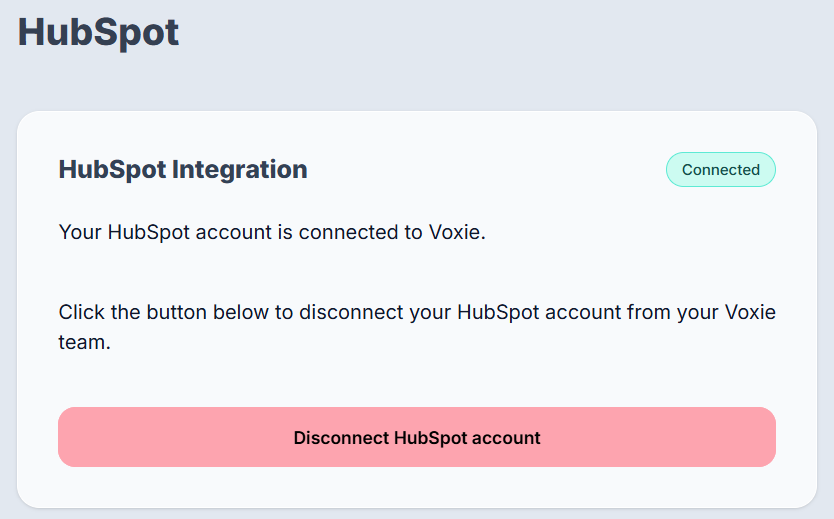
If you disconnect your HubSpot account from Voxie Application, you will no longer be able to send contact information to Voxie via workflows, also contact lead & account data will no longer sync to HubSpot contacts & companies and vice versa. Existing data will remain on your HubSpot records.
Steps to disconnect:
- 1 Log in into Voxie
- 2 Navigate to the Settings page (cog icon on the top-right)
- 3 Go to the HubSpot sub-page under the Integrations section
In Voxie, admin level access is required for operations with Integrations
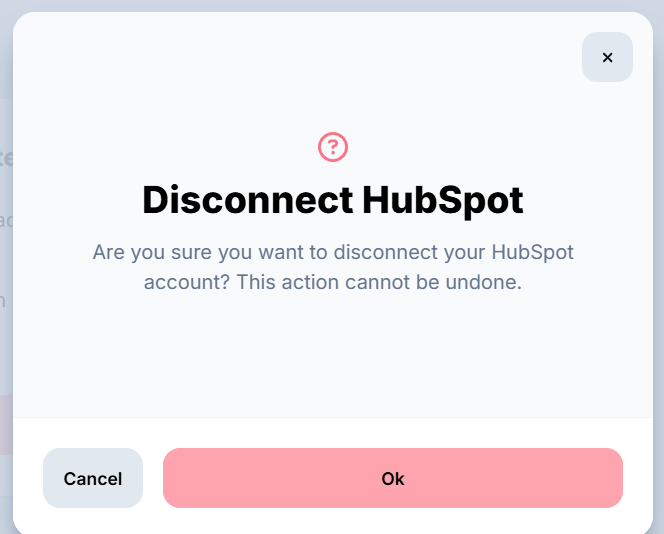
- 4 Click Disconnect HubSpot Account
- 5 Click Ok
To uninstall Voxie from your HubSpot account, follow the instructions in the HubSpot Knowledge Base article on uninstalling apps.